
1
Capture while it’s fresh.
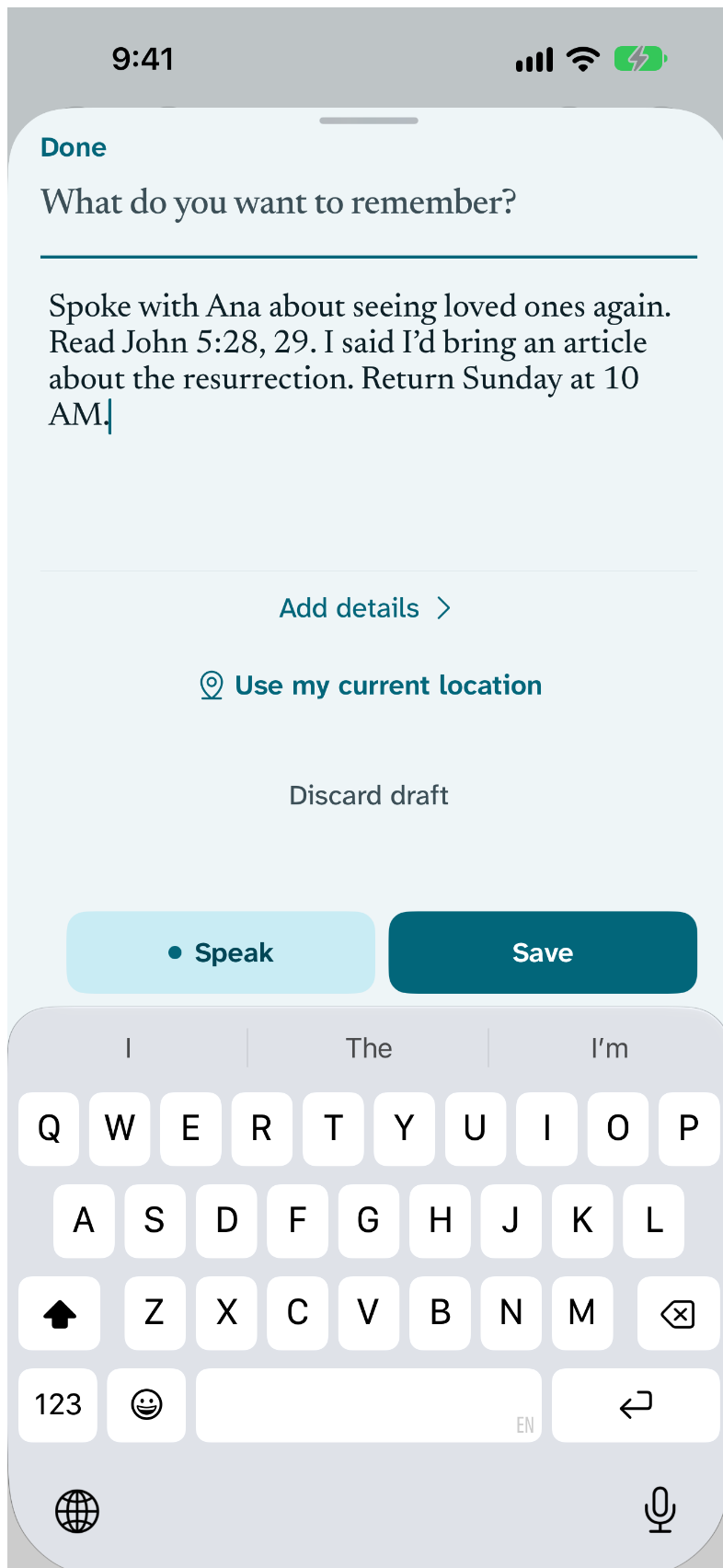
Write or speak the conversation in your own words. Return saves them on this device first, before any person, place, or detail is chosen.
How it works
Return carries one conversation from a fast capture to the moment it helps you return prepared. A saved Conversation is complete before any optional detail is confirmed.
Write or speak the conversation in your own words. Return saves them on this device first, before any person, place, or detail is chosen.
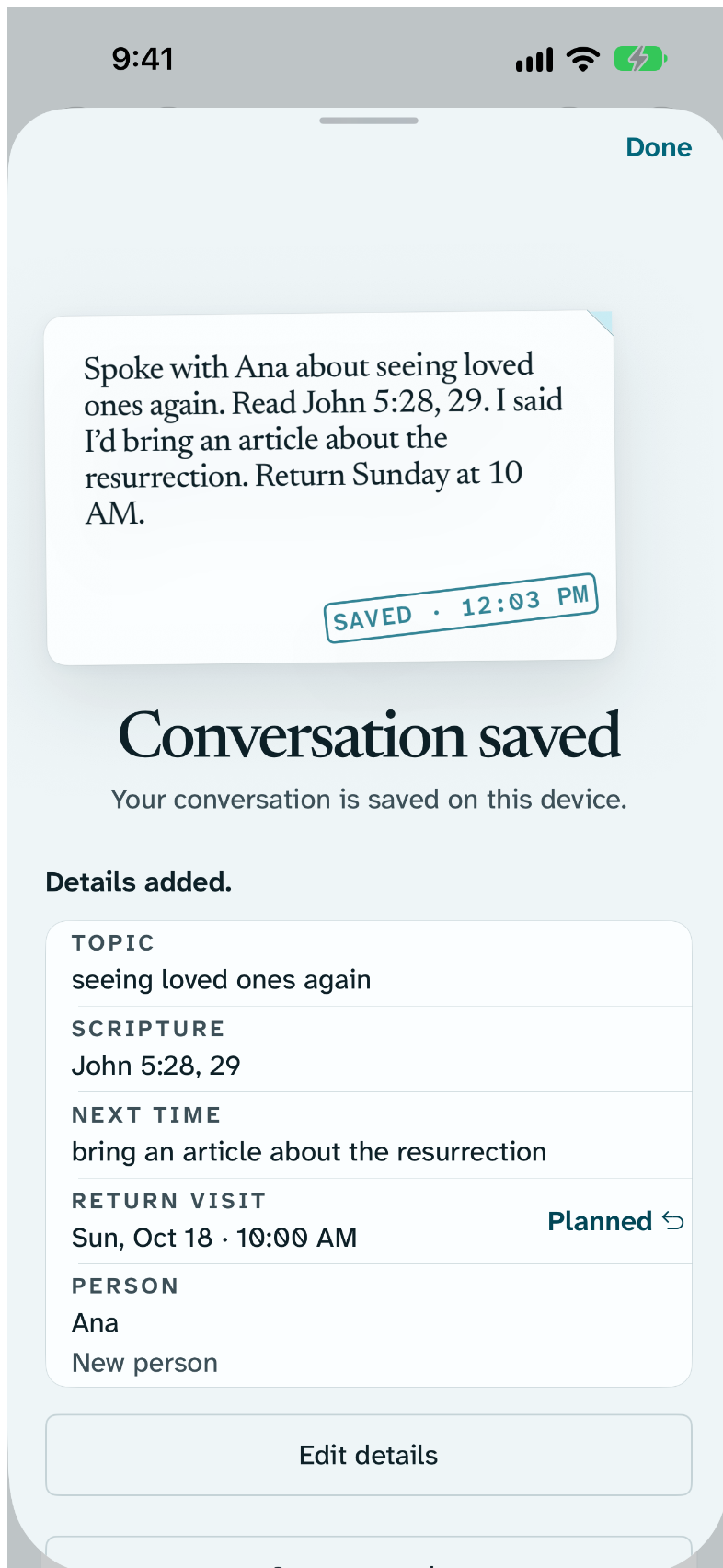
Save keeps your page exactly as you wrote it. The SAVED stamp appears only once the conversation is really stored on your device.
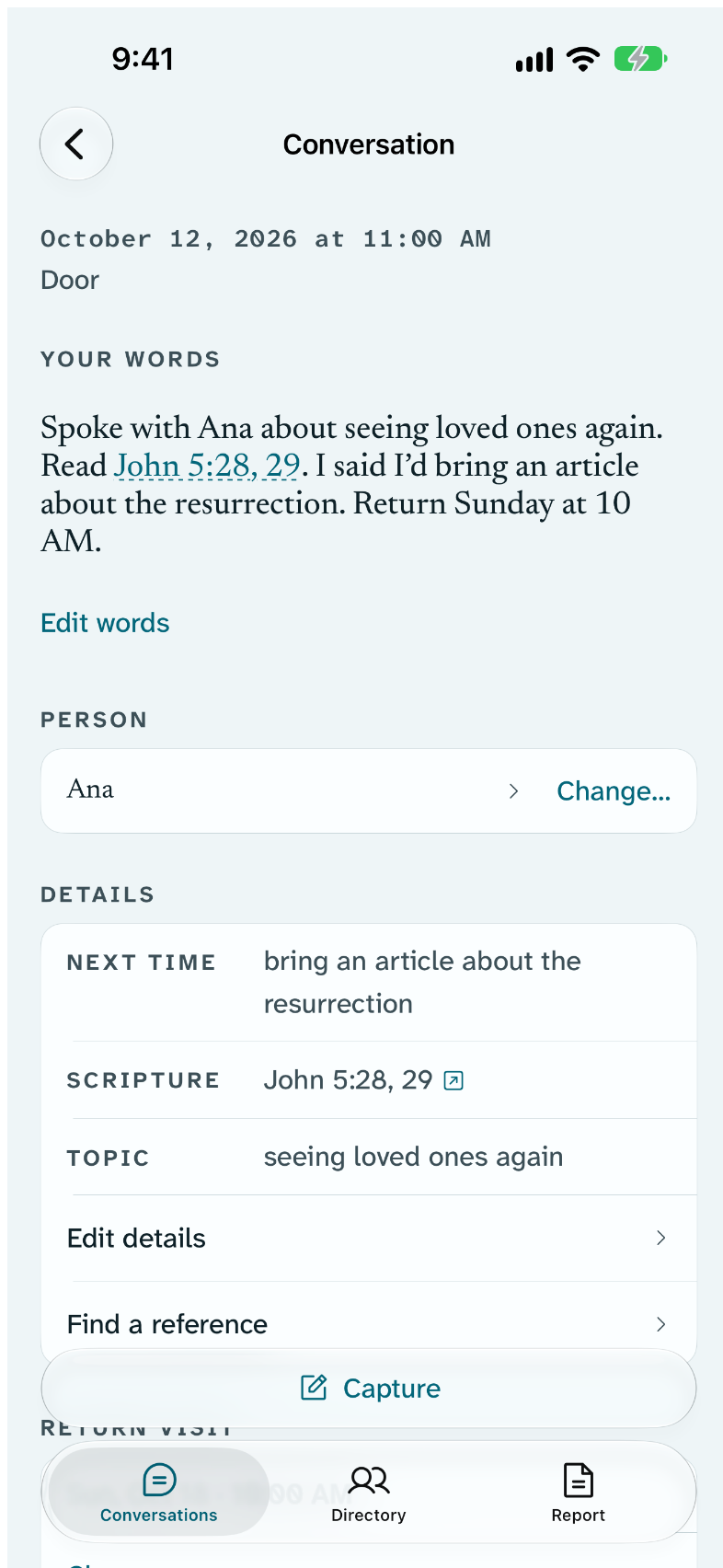
On device, Return can notice the Scripture you read, what you said you’d bring, and when you’ll return. They appear on the receipt before Return keeps them, and you can change any of them later.
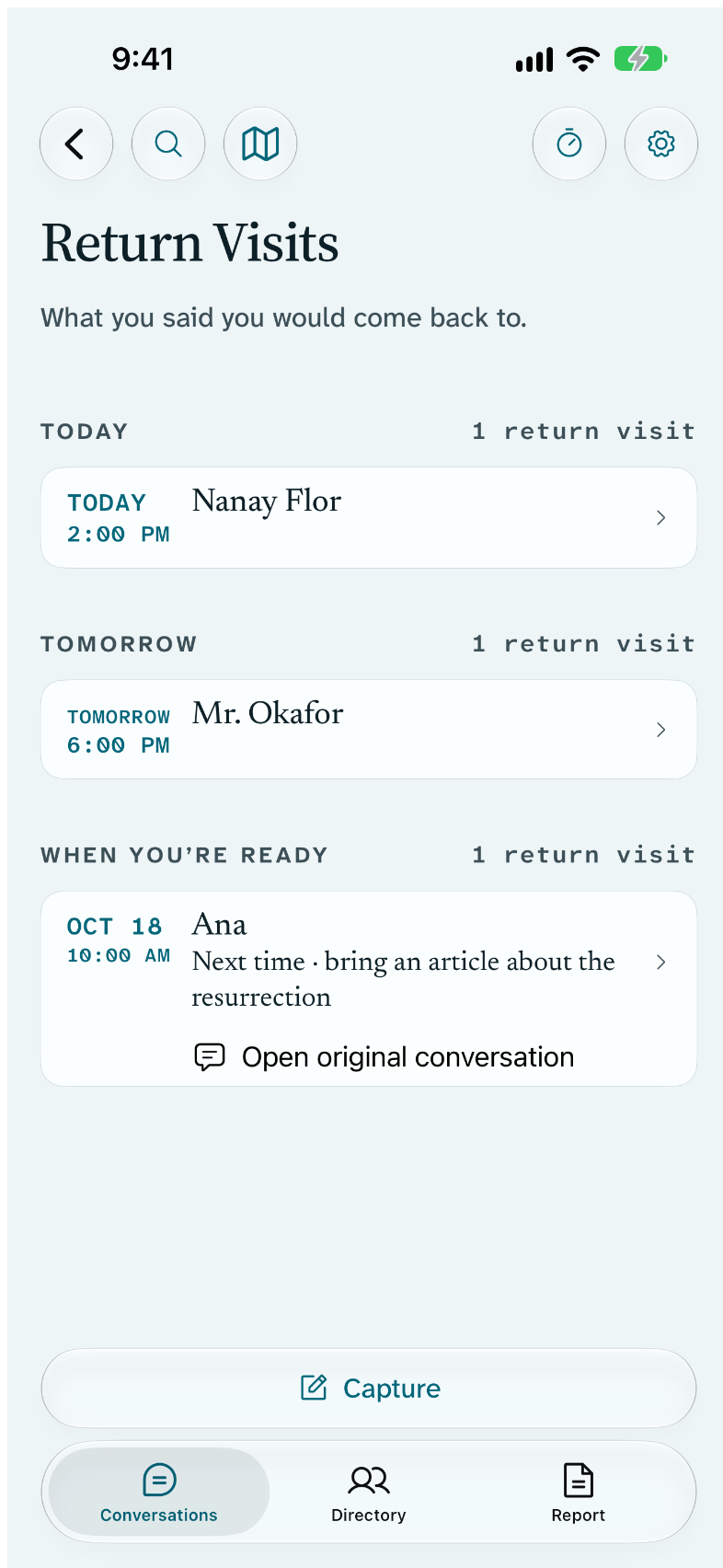
Return Visits holds what you said you would come back to, by day and time, with what you said you’d bring next time. It never ranks one person above another.
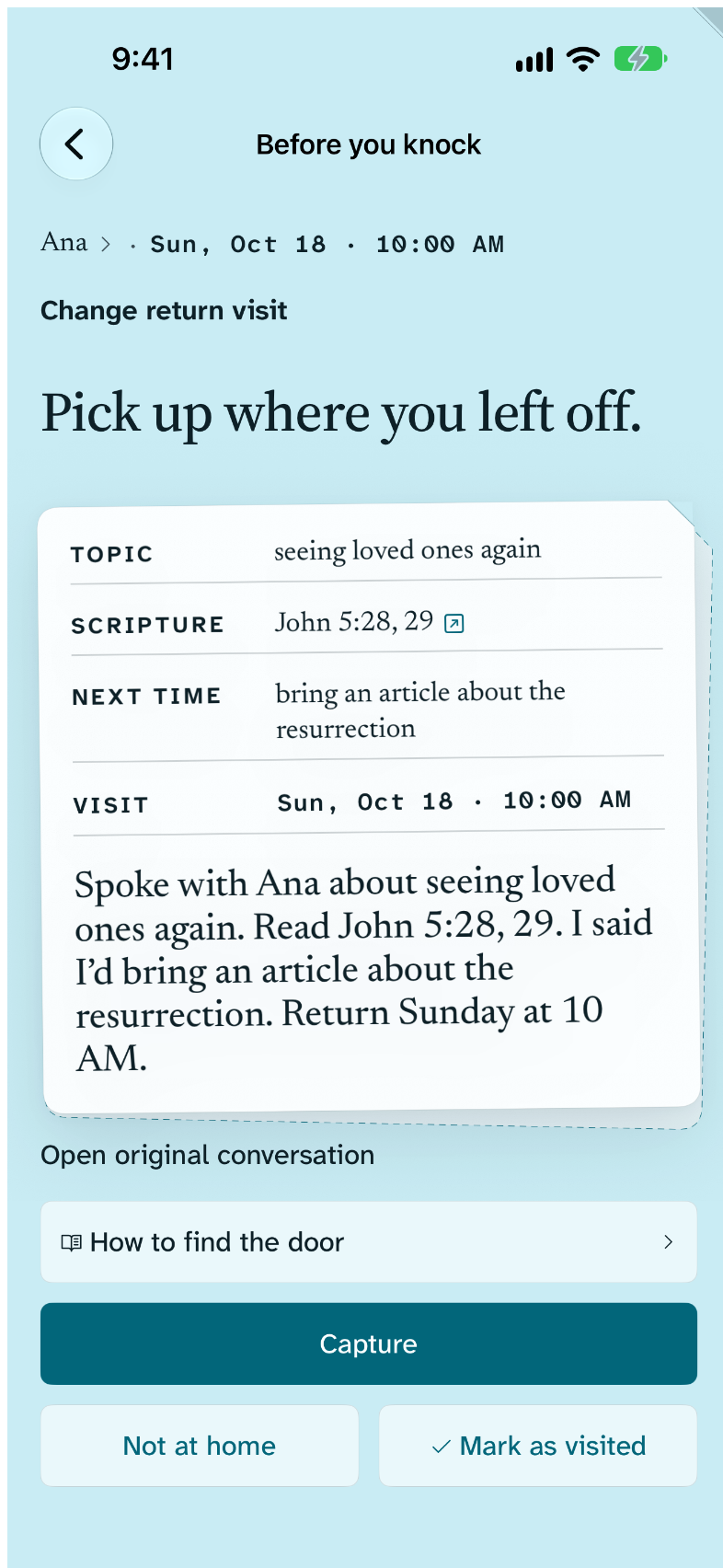
Not a summary about a person: your own kept conversation, with what you promised to bring, just before you knock, call, write, or meet.
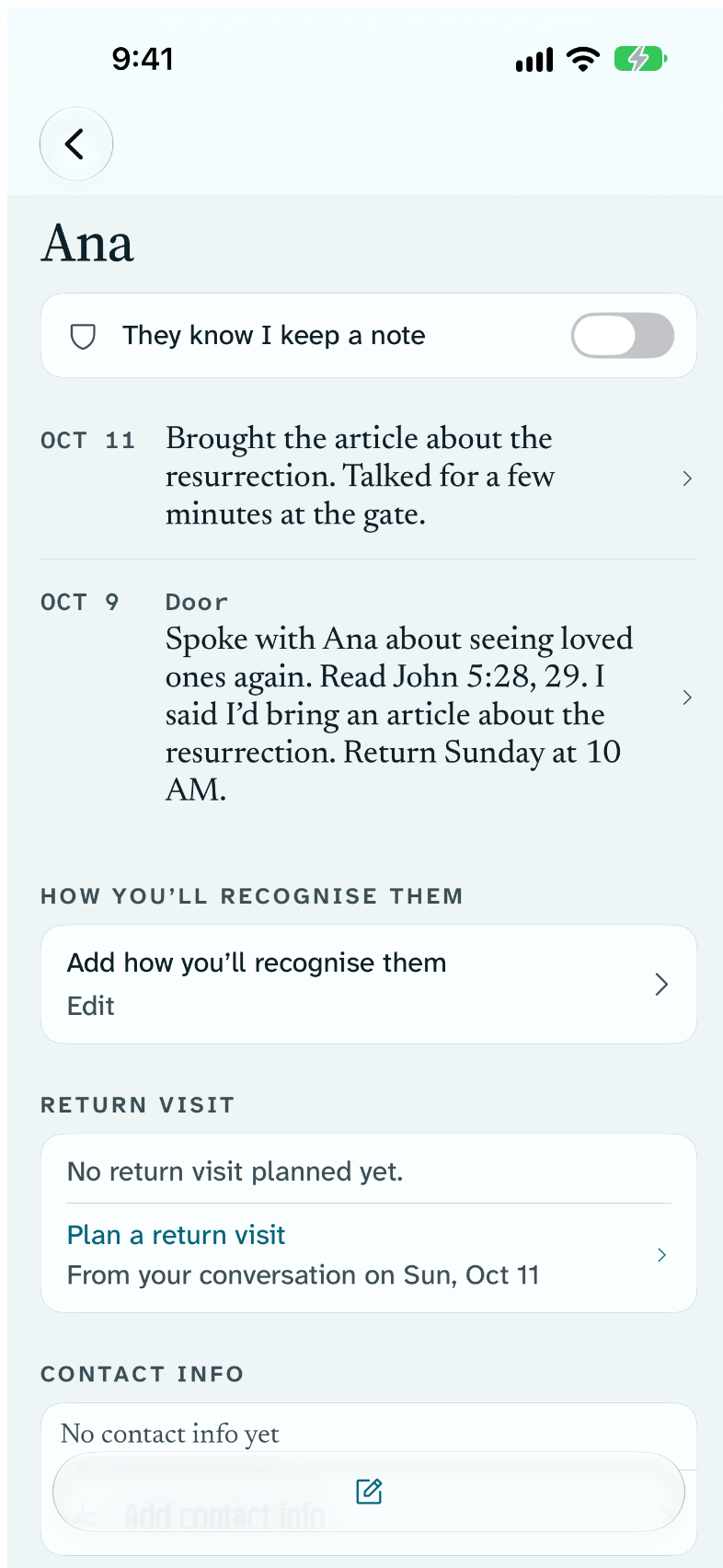
After the return visit, what you write next joins the same person’s history, newest first. No checkmark and no score — just the next page.
Everyday ministry
Not every conversation follows a straight path. Return adapts to whatever happened without creating extra paperwork.
A conversation can stand completely on its own. If you didn't catch a name or agree on a return visit, Return keeps the conversation and where it happened without forcing you to invent a profile.
Each place is kept with the person you met there. Doorway photos, landmarks, and saved pins keep the way clear even when house numbers are missing or street names change.
Capture, reading past conversations, and essential wayfinding work without cell service or map tiles. When you leave connectivity behind, your records stay readable.
Built around that loop
Places, maps, iPad, Apple Watch, studies, reporting, widgets, export, erase, and accessibility support the same Conversation-first fieldbook without becoming extra steps you must complete.