What’s new · Return 1.8.1
Your month, drawn against your goal
Three things to try today. Your notes stayed on this iPhone the whole time.
For everyone
Your goal, drawn
Set a monthly goal and watch the month fill in. Mark days away, and the pace plans around them.
How to use it: Monthly goal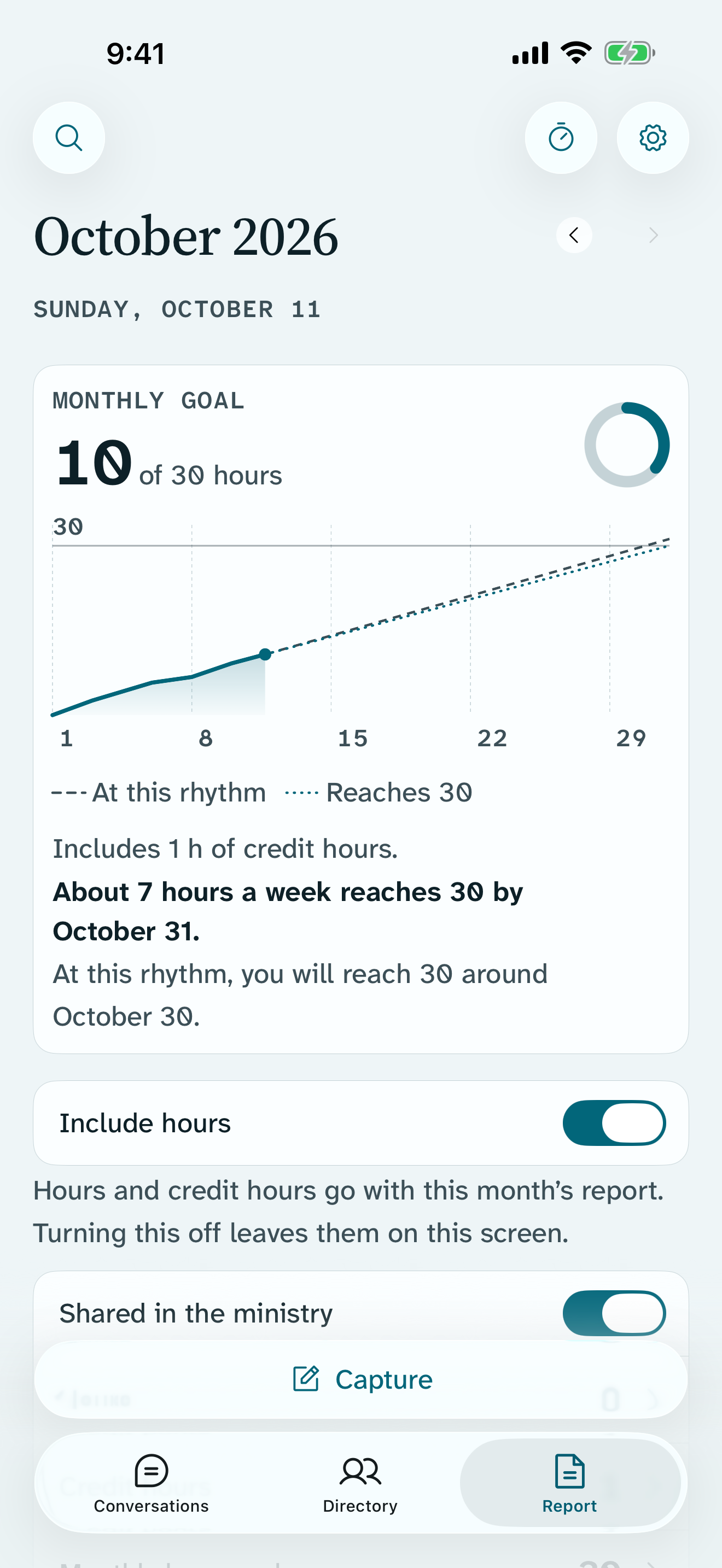
A timer for a glance
Hours and minutes up front. Pause or stop it from the Lock Screen or your Watch.
How to use it: Ministry timer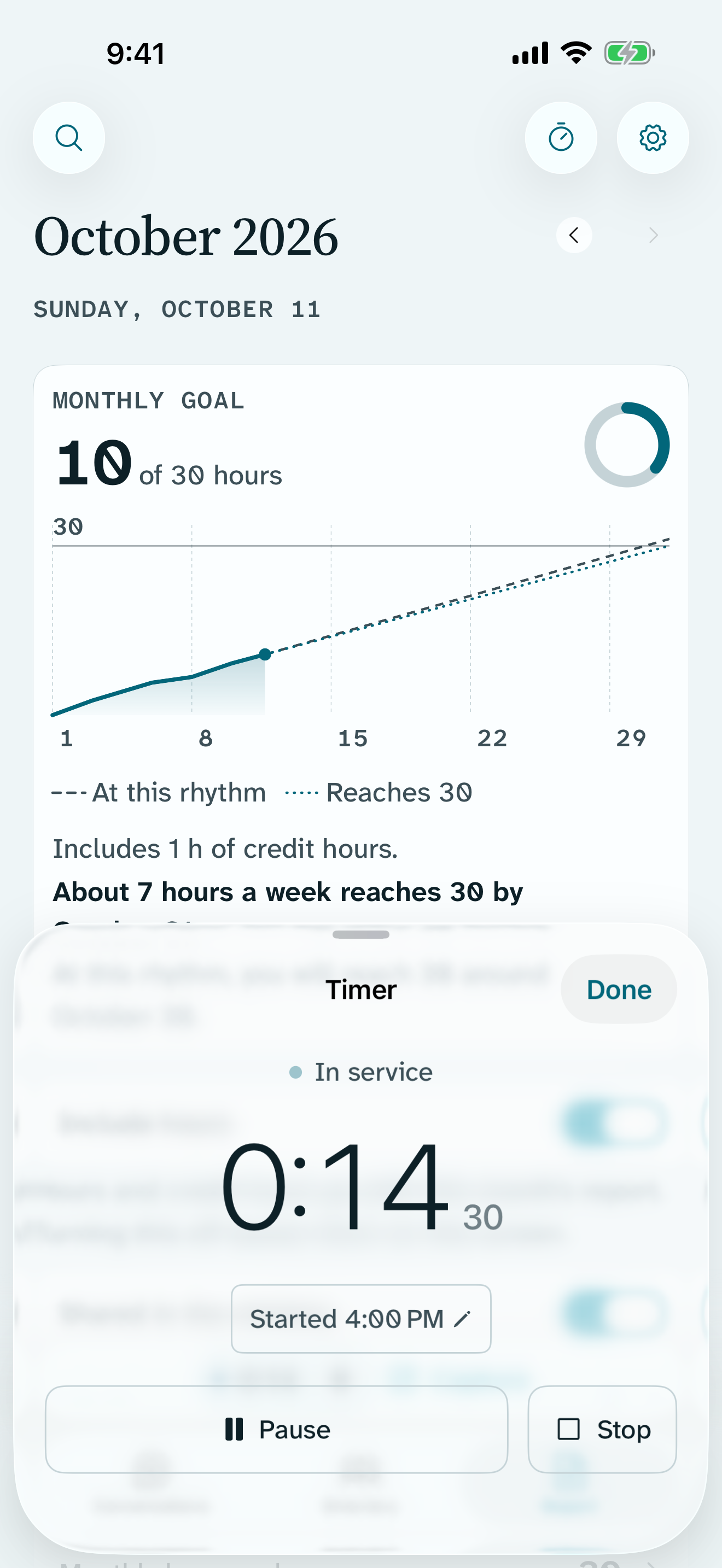
Slide to set hours
Slide the ruler, or tap 1h, 1h30 or 2h. No more tapping minutes one by one.
How to use it: Hours and report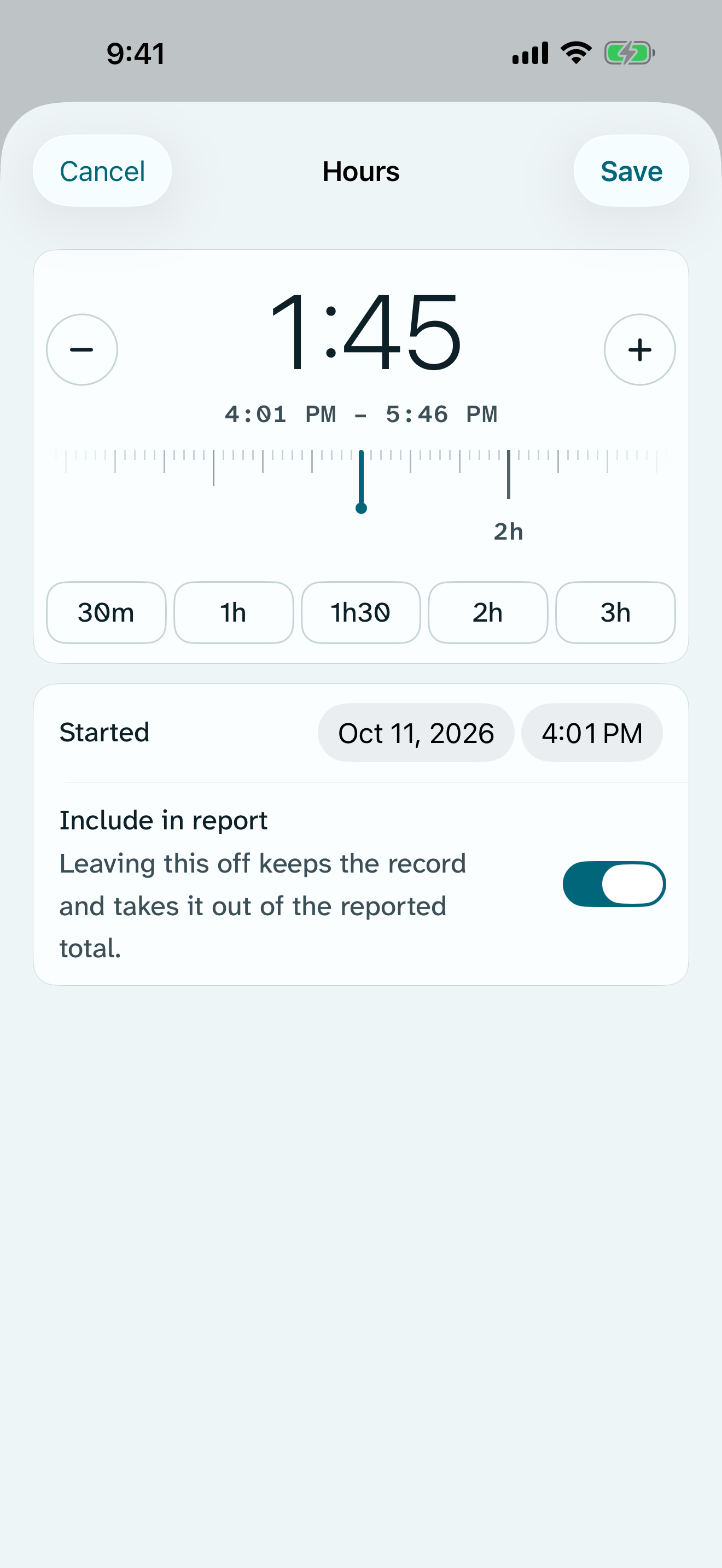
With Return Supporter
Your rhythm
Return learns the days you usually go out and plans the rest of your month around them.
How to use it: Monthly goal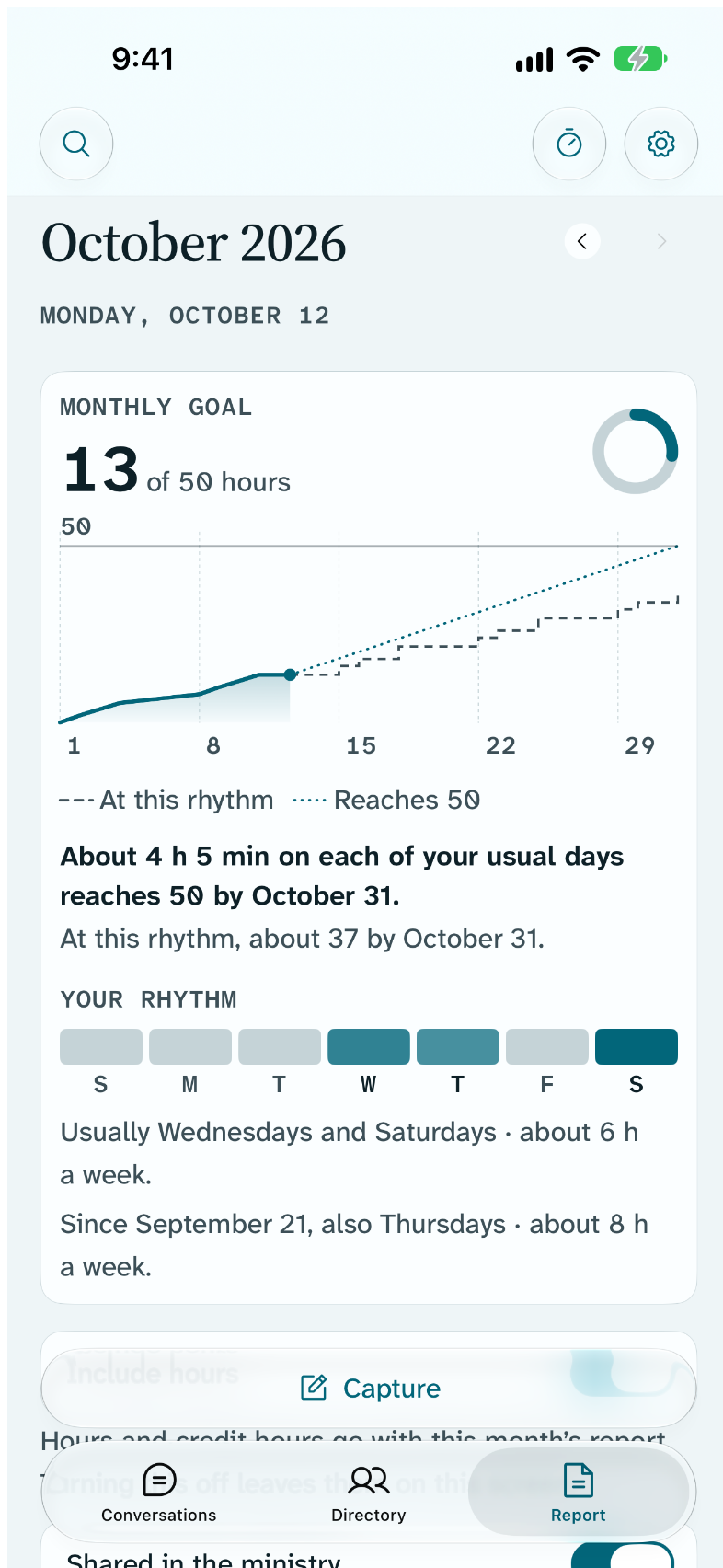
Hours and studies sync too
Your hours, Bible studies, goal and theme now follow you to every device.
How to use it: iCloud sync and backup
Everything for everyone is free and stays free. Return has no accounts and sends nothing to us.
Return 1.8
Return knows who a note is about
A name at the start heads the note
Start a note with a name, like “Ferdie Pedro, brother of Vic…”, and Return suggests Ferdie as the person. When two names are equal, the saved screen offers each one.
How to use it: CaptureSiri, Shortcuts and the Lock Screen
Say “Search Return” and Search opens with your words in it. Add the Search Return widget to your Lock Screen. Nothing from your notes is indexed or read aloud.
How to use it: Siri and ShortcutsYour service year, on one card
Report now makes a card of your service year: your conversations and hours, ready to save or share. It stays on this iPhone until you share it.
How to use it: Hours and reportA new Supporter page
See what Supporter includes today and what is still coming, side by side. Supporters get a seal with the month they joined and their own name on the bookplate.
Also in 1.8
- Return Visits and Conversations show a short date beside each row.
- A What’s new button beside Search shows what changed in each update.
- The ministry timer counts up in the Dynamic Island and sits beside the camera.
- Control Center controls show their icons, and conversations fit on iPad in portrait.
- The Supporter page fits beside Settings on iPad.