
Guides · Hours and report
Add hours and send your report
Record ministry hours and credit hours yourself, or let the timer add them. Then share a short slip with exactly the facts you choose.
New in 1.8.1
Add or correct time
Open Hours
In Report, tap Hours, or Credit hours, to see this month’s records. Tap Add hours or Add credit hours.
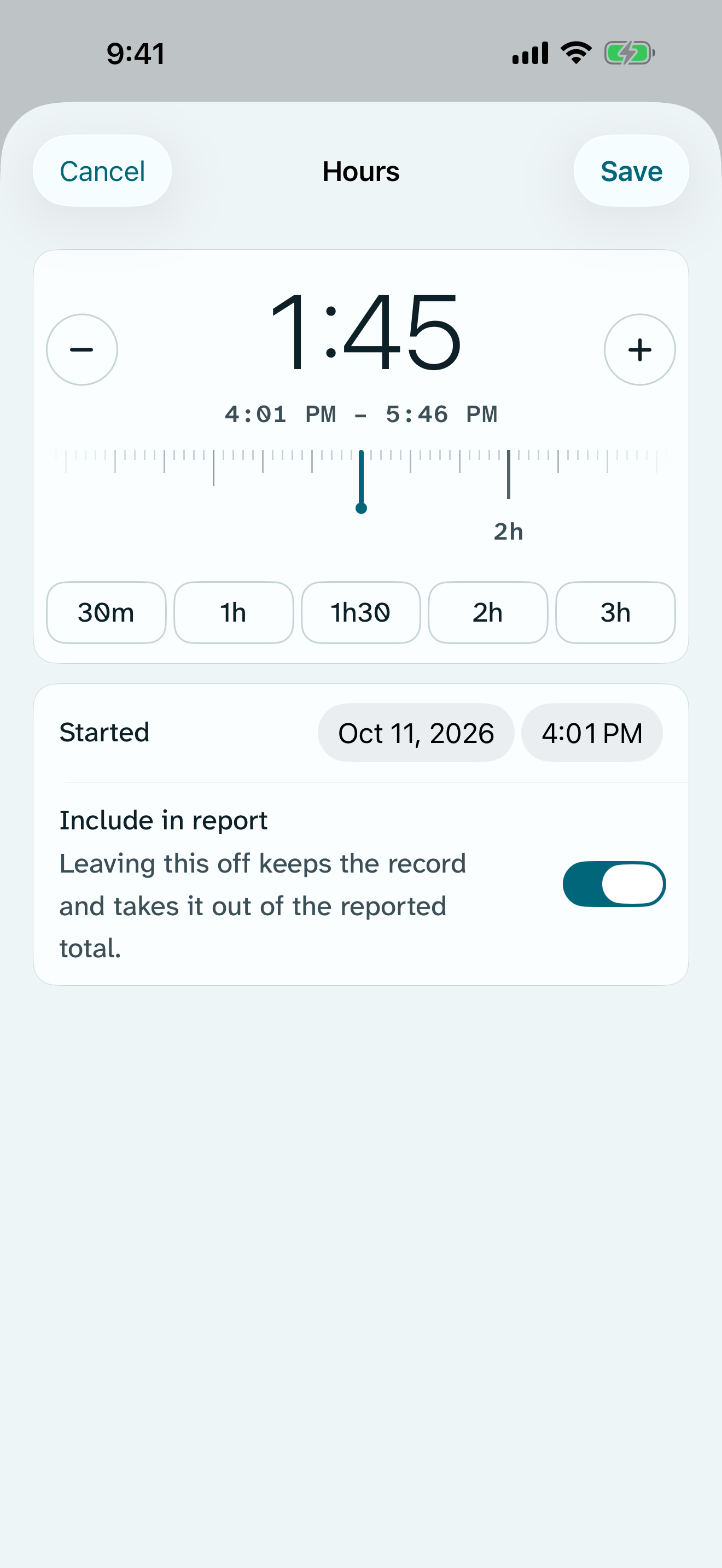
Slide to set the length
Slide the ruler under the big figure, or tap 30m, 1h, 1h30, 2h or 3h. The plus and minus buttons move it by a quarter hour. Under the figure you see the stretch on the clock, such as 9:00 AM – 10:45 AM.
Save
Tap Save. To change a record later, tap it in the list. Remove this record deletes it.
Send your report
Check the facts
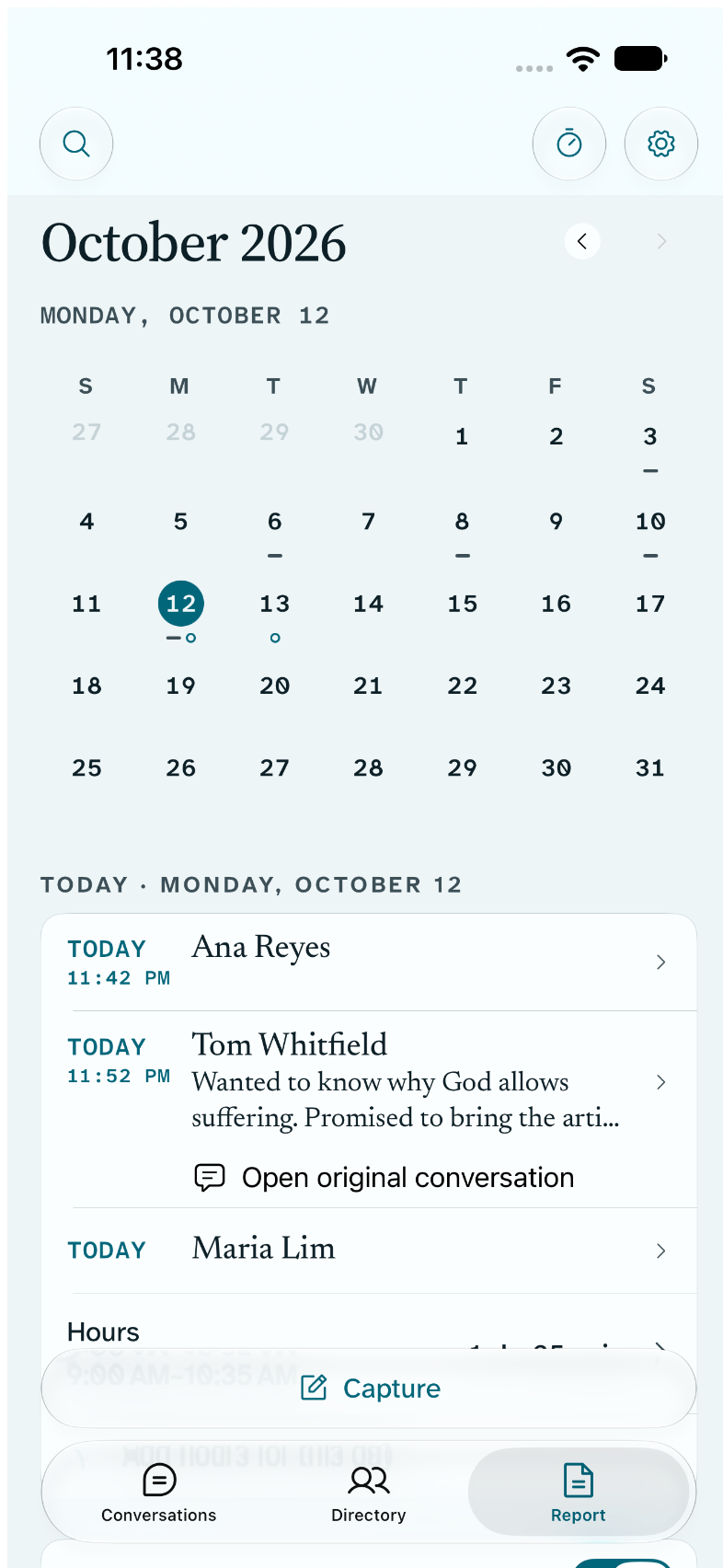
Report shows whether you shared in the ministry, your Bible studies and, if you record them, your hours. Include hours decides whether hours go with this month’s report.
Share this slip
The slip shows exactly what will be sent, with room for a short note. Tap Share this slip, and choose who receives it in the share sheet. Return does not choose a recipient.
Your service year
Report also makes a card of your service year, your conversations and hours, ready to save or share.
What stays on your device
- Hours, credit hours and report facts stay on this device until you share the slip.
- The slip never carries a householder’s name, your goal or your pace.
- With iCloud sync on, your hours and studies reach your other devices through your own iCloud account.
Free
- Hours, credit hours and Bible studies
- The duration ruler and the timer
- The report slip and the service year card
With Return Supporter
Nothing here needs Supporter. All of it is free, and stays free.